A PDF is where a document goes to be read, not written. PDF Converter for Mac turns it back into something you can actually work on: a real Word document you can rewrite, a PowerPoint deck you can present, or an iWork file that drops straight into Pages and Keynote — with the original layout, fonts, images and charts still in place.
Paste a PDF into Word and the headings scatter, the columns collapse and the charts turn into pictures. Drag it into this app instead, and you get an editable file with live text, real tables and native shapes — the kind you can keep working on rather than rebuild from scratch.
System Requirement: macOS 13.0 or later · Native support for Apple Silicon (M1/M2/M3/M4) and Intel
The proposal that came back as a PDF. Your client approves the draft but sends changes as a marked-up PDF. Now you need to rewrite three sections, swap in fresh figures and ship it by morning. Copying and pasting leaves you reformatting every paragraph — so you convert it once and keep writing in Word.
The deck that only exists in PDF. A report lands five minutes before the meeting and there is no Keynote file, no slide navigator and no presenter display — just a Preview window you will awkwardly scroll through. Convert it and you walk in with real slides.
The scan with no text layer. A signed form, a faxed brief, a whiteboard photo: the content is there, but the file has no selectable text. Ordinary converters skip right over it. Built-in recognition turns those pages into text you can search, quote and edit.
One drag, and the PDF is a working document again. PDF Converter for Mac is built for the moments after you have finished reading: convert to Word or PowerPoint for day-to-day editing, to iWork Pages or Keynote when the rest of your work lives there, or to images and plain text for the small jobs. Preview every page before you commit, pick exactly the pages you need, and run through a whole folder in a single pass. Nothing is uploaded, and nothing leaves your Mac.
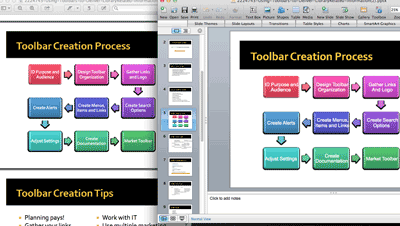
The point of converting is not to get a prettier picture of your PDF — it is to get text you can edit. Paragraphs stay paragraphs, headings stay headings, and tables come through as tables rather than screenshots.
One PDF, four destinations. Send a report to Word when it needs rewriting, a deck to PowerPoint when it needs presenting, or to iWork Pages and Keynote when that is where the rest of your work lives. Images and plain text exports cover the simple jobs.
.docx — fully editable Word documents with live text and real tables.pptx — slide-per-page presentations ready for PowerPoint.pages / .key — native iWork files for Pages and Keynote.jpg / .png / .bmp / .gif / .tiff and .txt for archives and quick grabs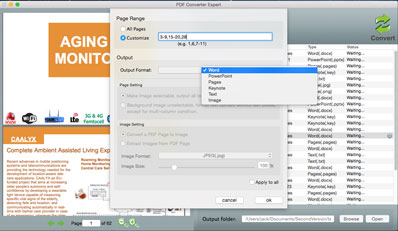
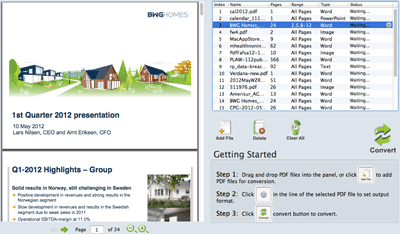
Not every job starts with a single file, and not every file needs every page. Throw in two hundred PDFs at once, or tick exactly the pages you want — page 3 to 7, page 12, page 19. The app queues them, shows progress, and gets on with it.
Layout, images, charts and tables survive the trip. What you open is what the PDF contained.
Native engine, no cloud round-trip. A 300-page annual report converts while you make coffee.
Everything runs on your Mac. No uploads, no accounts, no traces left on a server.
Drag, pick a format, click. No settings labyrinth. Works offline, with files of any size.