A scanned contract with a thumb-wide white border. A journal article with the publisher's running header on all thirty pages. A slide export wearing a grey letterbox. Most PDFs carry more page than content — and that leftover margin is exactly what makes them shrink to 70% on screen, print with a fat empty edge, and look wrong pasted into a report. PDF Crop for Mac Expert trims the page to the rectangle you draw: open a file, drag the handles, save. It runs entirely on your Mac: no upload, no server, no file-size limit.
Crop one page by hand, crop every page identically, or crop only the pages you pick — by number or by range. Password-protected PDFs are supported too: enter the password once, then crop as usual.
System requirements: macOS 13.0 or later · Native on Apple Silicon (M1/M2/M3/M4) & Intel · Offline, no account required
The scanner added a border you never asked for. Flatbed and sheet-feed scanners pad every page with black or white edges, and the document ends up smaller than the sheet it came from. Trim it once and the text fills the window again instead of floating in the middle of a grey field.
Every page wears someone else's furniture. Journal PDFs, downloaded reports and statement exports carry running heads, page numbers, footers and watermarks. Crop them all in one pass and the article becomes just the article.
A slide deck was exported as a PDF. Keynote and PowerPoint exports often keep the presentation's aspect ratio, leaving grey or white bands around every slide. Cropping restores a clean, page-shaped file that prints and embeds properly.
One page needs a different crop than the rest. A cover page is taller, an appendix is wider, a scanned insert is skewed. Crop those pages individually and batch the rest — you don't have to choose one approach for the whole document.
One tool, four ways to trim. PDF Crop for Mac Expert doesn't convert, rasterise or re-compress anything — it rewrites the crop box, the rectangle that tells a viewer which part of the page to display. Text stays selectable, vectors stay sharp, and the file you get back is the file you put in, minus the margins. Nothing leaves your Mac.
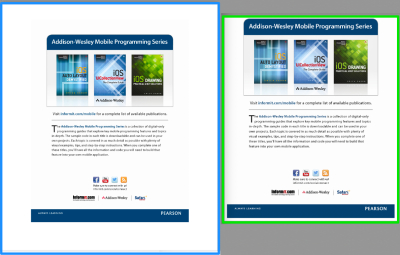
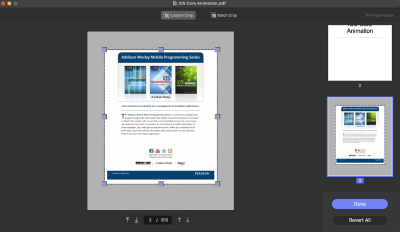
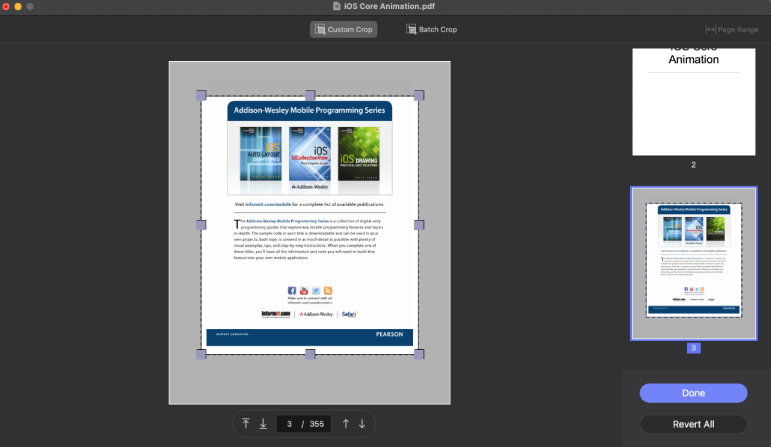
Draw the border you want instead of guessing at margin sizes in millimetres. Once a file is loaded the crop rectangle appears over the page; pull any of its dotted handles inward and the page preview updates as you move. Whatever stays inside the rectangle is what the reader will see — and what the page size becomes.
There is no settings labyrinth here. Add a file, set the new borders, save the output — that is the entire workflow. No format to choose, no conversion profile to configure, no quality slider to second-guess. It is the kind of tool you open, use for ten seconds and close again.
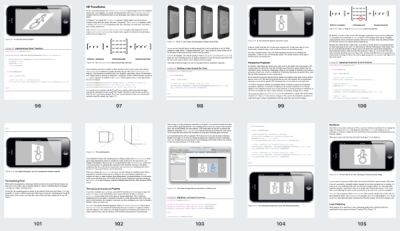
Most documents are consistent: every page has the same margin, the same header, the same empty strip along the right edge. In batch mode all pages are rendered on top of each other and blended, so you can see the union of every page's content at a glance — then draw one rectangle that fits them all and apply it to the whole document.
Sometimes one size genuinely does not fit all. Switch to custom cropping and the rectangle you draw applies to the current page only — every page can end up with its own size and position. Or take the middle road: pick a page range and batch-crop just those pages, leaving the cover and the appendix alone.
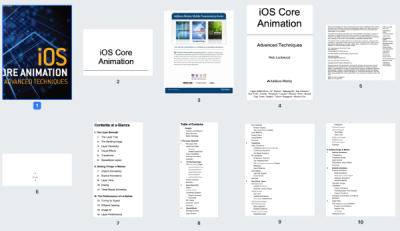
The interface is deliberately small: a page preview, a crop rectangle and a handful of buttons. Here is the whole workflow, from untrimmed scan to finished file.
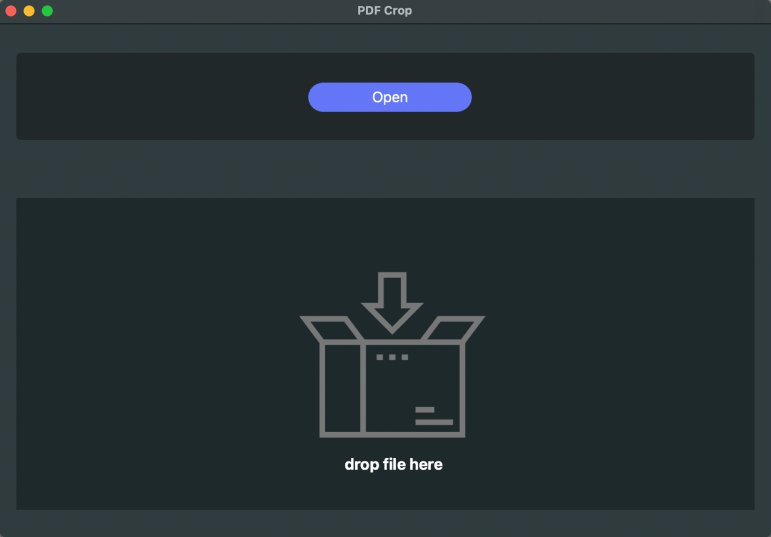
Click Open and select the PDFs you want to crop, or simply drag and drop them onto the panel — whichever suits you. You can load several documents at once and work through them in one sitting, and encrypted files are accepted as long as you have the password.
Resize the rectangle by dragging its corner and edge handles until only the content you want is inside. The preview follows every move, so you can judge the result by eye rather than by numbers. Click Done to apply the crop, or Revert All to reset the page and start again.
Decide how far that rectangle should reach. Custom Crop  is selected by default and applies the setting to the current page only. Batch Crop
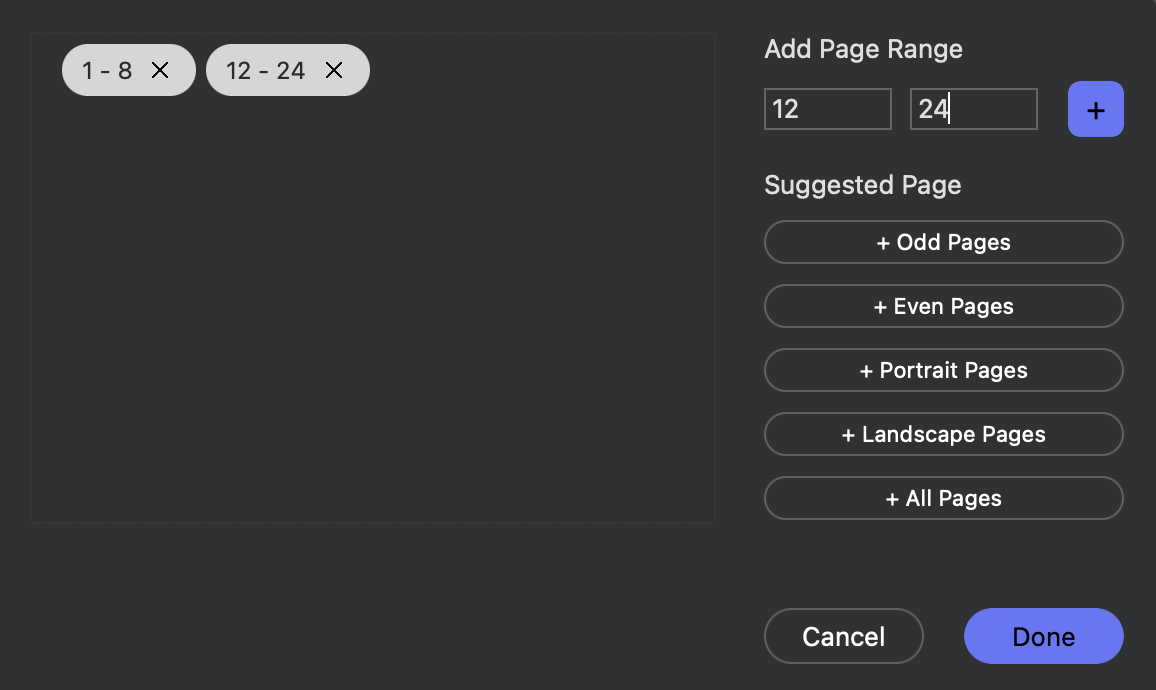
  crops every page in the document equally. For anything in between, click the Page button
  to open the page selection panel and pick the pages or ranges you want. Once the rectangle is right, click Done — the trimmed PDF is written in seconds, ready to email, print or drop into a report.
Set the new borders by dragging what you actually see — no guessing at margin widths, no trial-and-error exports.
Batch mode superimposes every page, so one crop rectangle can be made to fit an entire scanned document.
Cropping rewrites the crop box, not the content: text stays selectable, vectors stay sharp, files get smaller.
Everything runs on your Mac. Files are never uploaded, no account is needed, and there is no file-size limit.