A confidential report, a signed contract, a deck with tomorrow's pricing — some PDFs were never meant to be forwarded. PDF Encrypt for Mac Expert adds an open password, blocks printing and copying, writes the metadata that declares authorship, and merges several files into one. It runs entirely on your Mac: no upload, no server, no file-size limit.
Drop a PDF onto the window, choose what the reader may do, click Convert. Seconds later the file opens only for the people you chose.
System requirements: macOS 10.8 or later · Native on Apple Silicon (M1/M2/M3/M4) & Intel · Offline, no account required
You're emailing the only copy of a signed contract. Attachments get forwarded. Set an open password and the recipient must type it before the first page appears — the file stays unreadable in transit, in a preview pane, in a cache, on a phone.
The sales deck has prices that change tomorrow. Printing and copying restrictions stop the numbers being screenshotted, pasted into a competitor's doc, or fed to an OCR bot. The reader still sees every page — they just can't take it with them.
Your name isn't on the PDF, and it should be. Title, author, subject and keywords live inside the file. Set them once and your authorship travels with every copy — searchable, indexable, undeniable.
One app, four kinds of control. PDF Encrypt for Mac Expert doesn't convert anything — it hardens what you already have. Passwords use the AES encryption built into every PDF reader; restrictions are applied at the file level; metadata is written into the document info dictionary; merging happens in memory on your machine. Nothing leaves your Mac.
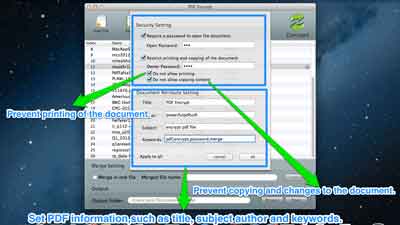
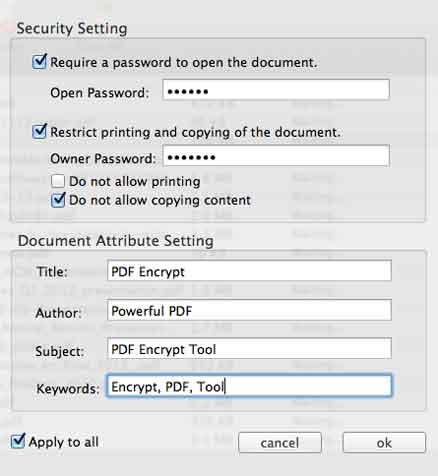
Two different locks, for two different problems. An open password (user password) prevents the document from being opened at all. Permission restrictions (owner password) let anyone open the file but stop them from printing, copying text and images, or editing the document.
PDFs carry hidden metadata: title, author, subject, keywords. It's what Spotlight indexes, what appears in the Finder preview, and what proves who made the file. Set it yourself instead of keeping the generator's default.
Title, Author, Subject and Keywords stored inside the file
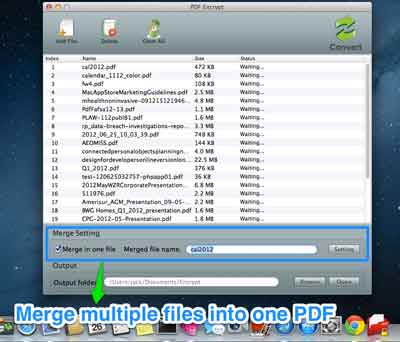
A contract, its exhibits, the signed addendum and the cover letter should be one file — not four attachments arriving in the wrong order. Add them all, arrange them, and merge. The result inherits the encryption and metadata settings you just chose.
The interface is deliberately small: three buttons, one settings panel, one progress bar. Here is the whole workflow.
Click the Add files button  or choose File → Add Files from the menu. Import as many original files as you like at once — there is no limit. Click Delete
  to remove one imported PDF, or Clear
  to remove them all.
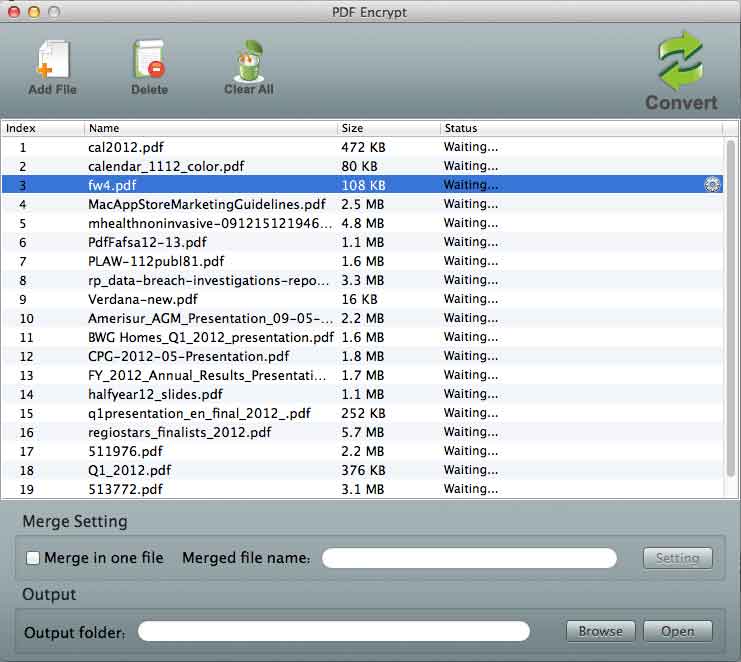
Click the gear icon  on the row of the selected file. There you set the metadata and the encryption: open password, printing, copying, editing. Tick Apply to all and the same settings are copied to every file in the panel. You can also enter a page range to save time — type the pages you want, for example 1, 5-9, 12.
Click the Convert button  . The original file is written to a protected PDF in seconds. Then share it by email, AirDrop or your team's shared folder — the password goes separately, the file stays locked.
Open passwords and permission restrictions are written directly into the PDF, using the same encryption every compliant reader understands.
Title, author, subject and keywords travel inside the file — searchable proof of authorship that survives renaming and forwarding.
Merge dozens of PDFs, then lock the result in one pass. No extra export step, no temporary files left behind.
Everything runs on your Mac. Passwords are never uploaded, never stored, never sent to a server — and there is no file-size limit.