A PDF lands in your inbox — a report to revise, a contract to update, a paper to rework — but the file is frozen: you can read it, you just can’t write in it. PDF to Pages changes that. Drop in a PDF and get a genuine Apple Pages document back, with headings, paragraphs, images, and charts exactly where they belong. Have a scanned, image-only PDF? Built-in OCR can read it and save the recognized content as a plain text file. And because the entire engine runs on your Mac, your documents are never uploaded anywhere.
System Requirement: macOS 13.5 or later · Native support for Apple Silicon and Intel
The report you have to rewrite tonight. Your manager sends back a PDF and asks you to restructure a section, swap in new numbers, and have it ready by morning. But the file is read-only — pasting it into Pages scatters the headings, breaks the columns, and orphans every chart, so the “quick edit” turns into an evening of rebuilding the whole document by hand.
The scan that’s only a picture of words. A signed form or a scanned article arrives as an image-only PDF. You can see the text, but you can’t touch it — and ordinary converters either hand you back the same dead page image or come back with nothing at all.
The content you need to repurpose, not just read. You want to pull the text into your own template, reuse it in another document, or turn pages into images for a presentation. The information is all there; it’s just locked inside a format designed for printing, not for editing.
One conversion, and the document is yours again. PDF to Pages is built around one job done exceptionally well: turning PDFs into living Pages documents. Choose a pixel-faithful layout where every text box and image stays editable, or a flowing body-text layout built for large-scale rewrites. Scanned and image-only PDFs are handled separately: on-device OCR reads them and exports the recognized content as plain text (.txt). When you need something simpler, you can also export images. Every step — preview, conversion, and recognition — runs locally on your Mac.

Place the PDF and the converted Pages document side by side and they’re hard to tell apart — same headings, same columns, same charts and pictures in the same places. But now everything is live: click a paragraph and type, select a chart and update it, move an image. This isn’t a page picture dressed up as a document; it’s a real .pages file built for editing.
Every block of text becomes an individual text box placed exactly where it was in the PDF, and images remain separate, selectable objects. Choose this when the look of the document matters — a report, a brochure, a form — and you want to edit the content while keeping the original design intact. Both text and images are fully editable.
Text is placed into a continuous Pages text body that reflows naturally as you add, delete, or restructure content, with the page images laid behind as a non-editable background. Choose this when the words are what matter — rewriting an article, extracting a chapter, feeding text into your own template — and you want to make large-scale changes without working around dozens of separate boxes.
A scan is only a photograph of a page, and most converters either skip it or hand you back the same lifeless image. PDF to Pages reads it instead: on-device OCR recognizes the text on scanned and image-only PDFs and saves it as a plain text (.txt) file you can search, quote, and keep editing. Scanned PDFs are converted to text — Pages output is available for regular PDFs that already contain a text layer.

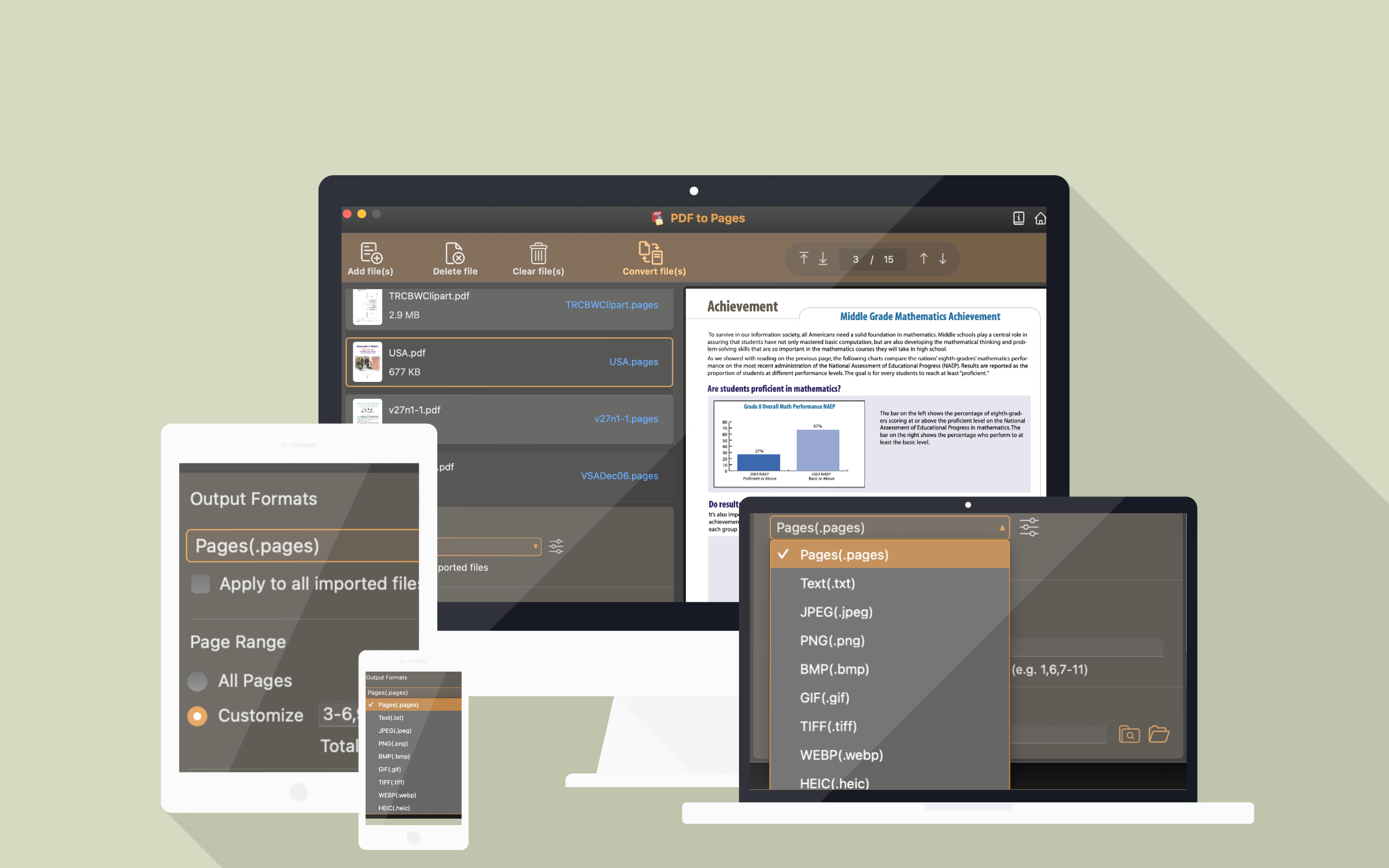
Pages is the star, but the same queue covers the simpler jobs too. Export an editable Pages document, extract plain text for reuse elsewhere, or turn each page into an image. It’s a single dropdown to choose, and every file in the queue converts in one pass.
The conversion engine and OCR both run on your Mac. Your PDFs and images are never uploaded, copied to a server, or seen by anyone else — no account and no network required.
Verify each file in the built-in preview and convert all pages or just a custom range such as 3-9,28,56, so you never rework pages you didn’t want.
Queue up dozens of PDFs and let them run together. Each one becomes its own document — no repetitive open, save, and convert routine.
Password-protected PDFs open with a local password prompt. If a locked file is a scan, OCR can still read it into a text file — all without leaving your Mac.
Got a PDF heavy enough to bounce from an inbox or stall an upload — especially one packed with scans? Take a look at PDF Compress Expert for Mac. Dial in DPI and image quality to shrink it, batch-compress a whole folder at once, and check the result in a side-by-side preview before you save.