A PDF is where a document goes to be read, not rewritten. PDF to Word for Mac turns it back into a real .docx: paragraphs you can rewrite, tables you can sort, and images you can move — with the original layout, fonts, charts and hyperlinks still in place.
Paste a PDF into Word and the headings scatter, the columns collapse and the charts turn into pictures. Drag it into this app instead, and you get a live Word file with native text and real tables — the kind you can keep working on rather than rebuild from scratch.
System Requirement: macOS 13.0 or later · Native support for Apple Silicon (M1/M2/M3/M4) and Intel
The proposal that came back as a PDF. Your client approves the draft but sends changes as a marked-up PDF. Now you need to rewrite three sections, swap in fresh figures and ship it by morning. Copying and pasting leaves you reformatting every paragraph — so you convert it once and keep writing in Word.
The chapter trapped in a scan. A contract, a manual or an old thesis only exists as a scanned PDF. There is no text layer, so you cannot quote, search or edit a single word. Built-in recognition turns those pages into selectable text you can copy straight into Word.
The locked file from a colleague. A confidential report is encrypted with a user password, or locked by an owner password that blocks copying and printing. The app opens what it can and converts the rest — no need to hunt down the person who set the password.
One drag, and the PDF is a Word file again. PDF to Word for Mac does one job and does it well: turn PDFs into editable .docx documents on your Mac, accurately and in batches, with nothing uploaded to the cloud. Preview every page before you commit, pick exactly the pages you need, and let the app chew through a whole folder while you get on with the rest of your work.
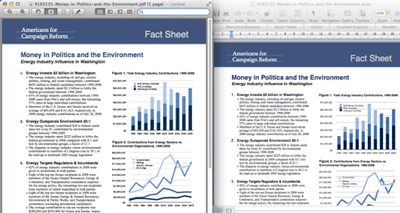
The point of converting is not to get a prettier picture of your PDF — it is to get text you can edit. Paragraphs stay paragraphs, headings stay headings, and tables come through as tables rather than screenshots.
Not every job starts with a single file, and not every file needs every page. Throw in two hundred PDFs at once, or tick exactly the pages you want — page 3 to 7, page 12, page 19. The app queues them, shows progress, and gets on with it.
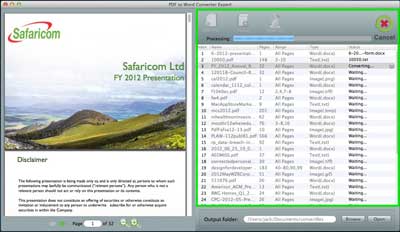
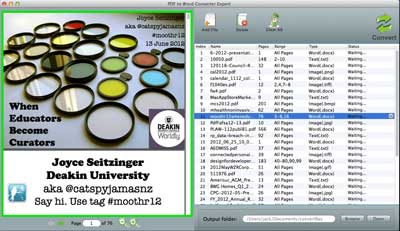
Why convert a 400-page annual report when you only need the appendix? Preview every page as a thumbnail, tick the ones you want, and convert just those. It is faster, and it keeps the resulting Word file from getting bloated.
Layout, images, charts and tables survive the trip. What you open is what the PDF contained.
Native engine, no cloud round-trip. A 300-page report converts while you make coffee.
Everything runs on your Mac. No uploads, no accounts, no traces left on a server.
Drag, pick a format, click. No settings labyrinth. Works offline, with files of any size.